Interactive elements can help keep learners engaged and interested, which promotes learning. But when used incorrectly (such as having the learner click for more information too often or when the amount of content is insignificant) can cause learners to feel frustrated and even disengaged. The key is to use an appropriate interaction at the right time and in the right way: chunking content logically (to prevent content overload), creating interest, and keeping the learner engaged in a meaningful way.
I created these examples to show how I use interactive elements in a variety of ways based on the learning need and audience.
Talent Development
Learning Need: This is a talent management vignette for any company that wants to focus on mentoring and coaching.
Audience: Managers
Primary Interactions: Click and reveals and a scenario-based question
Authoring Tools: Articulate Storyline 360 and Adobe Photoshop
Coming soon . . .
New Hire Orientation
Learning Need: This is a vignette for onboarding new hires for any type of business, particularly ones that want something scalable for a wide audience or companies with remote workers.
Audience: Adults with varying levels of education
Primary Interactions: Click and reveals and video
Authoring Tools: Articulate Storyline 360 and Adobe Photoshop
Coming soon . . .
Public Health
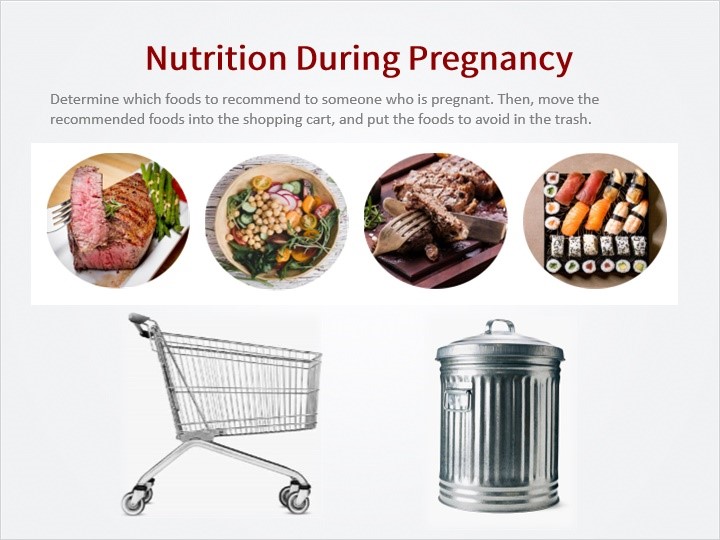
Learning Need: This is a vignette for a fictitious birthing center. The center provides in-person, online, and hard copy materials for people who are pregnant, planning on becoming pregnant, or supporting someone who is pregnant.
Audience: Wide ranging, primarily teens and adults with varying levels of education
Primary Interactions: Timeline feature, click and reveals, and a drag-and-drop activity
Authoring Tools: Articulate Storyline 360 and Adobe Photoshop
Coming soon . . .
 michellestage.com